
Once a quote has been approved an order can be created. When an order is created the opportunity advances to the Won column in the Pipeline Overview screen. Opportunities in the Won column are counted toward your final Won/Lost reporting.
To download the CRM Handbook see the article What is CRM?
Create an Order
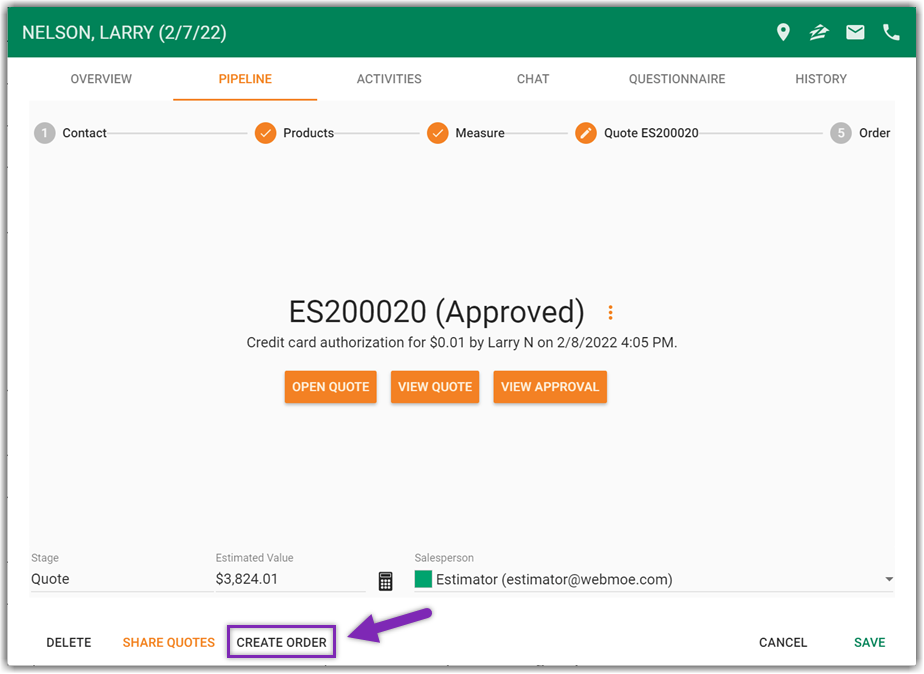
- While the opportunity is open to the Quote stage, tap the Create Order button at the bottom of the screen.
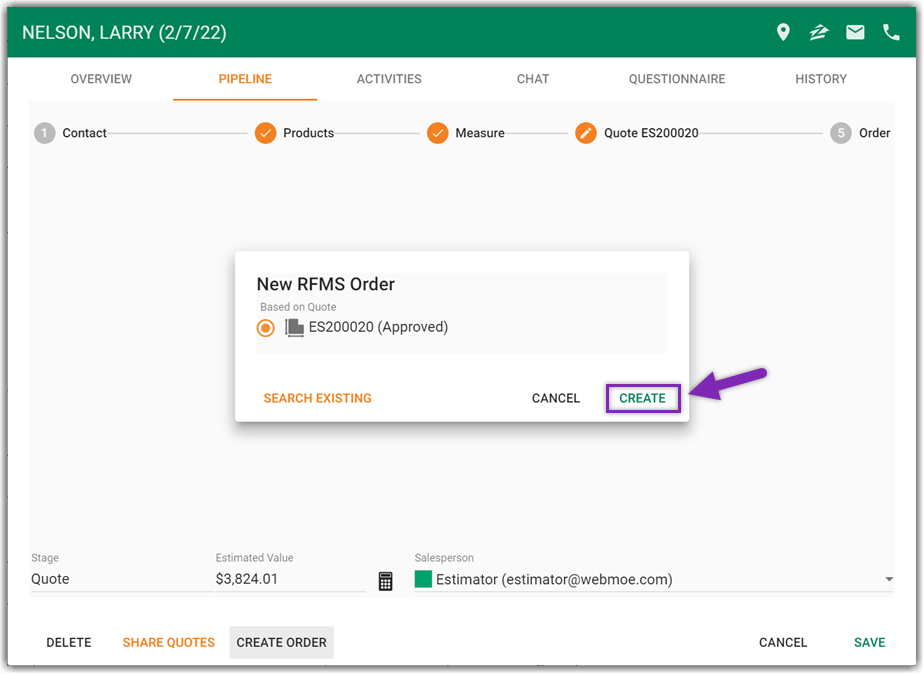
- Select a quote (if multiple are available) to base the order off of and then tap Create.
Associate with an Existing Order
- If you would like to attach the quote to an existing order select the option to Search Existing orders.

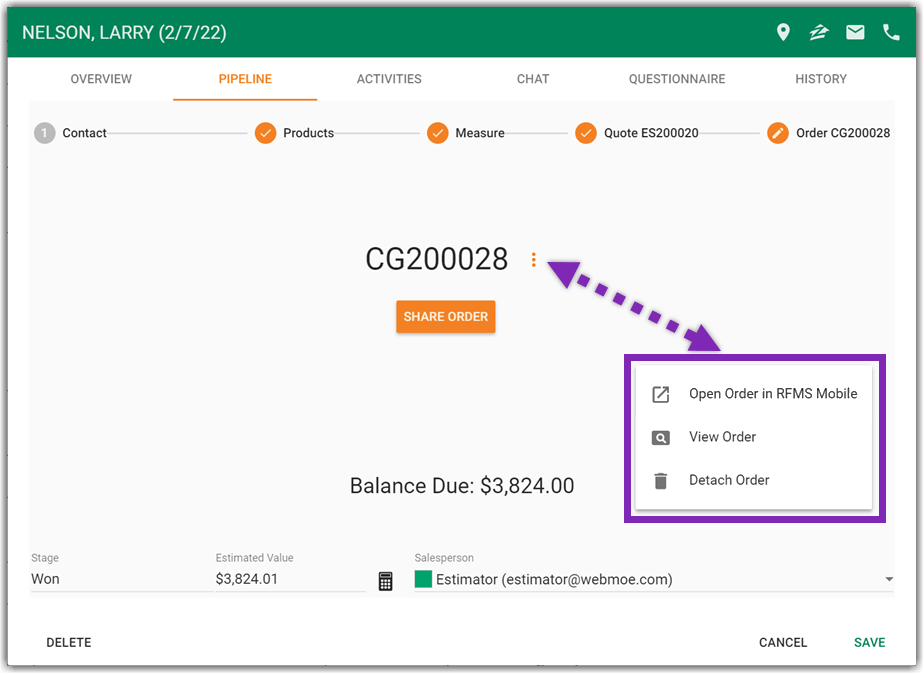
View Order Options
- View in RFMS Mobile: Opens RFMS Mobile
- View Order: Opens PDF view of Order and allows you to save it to your device
- Detach Order: Detach order from the opportunity
Share Order and Request Payment
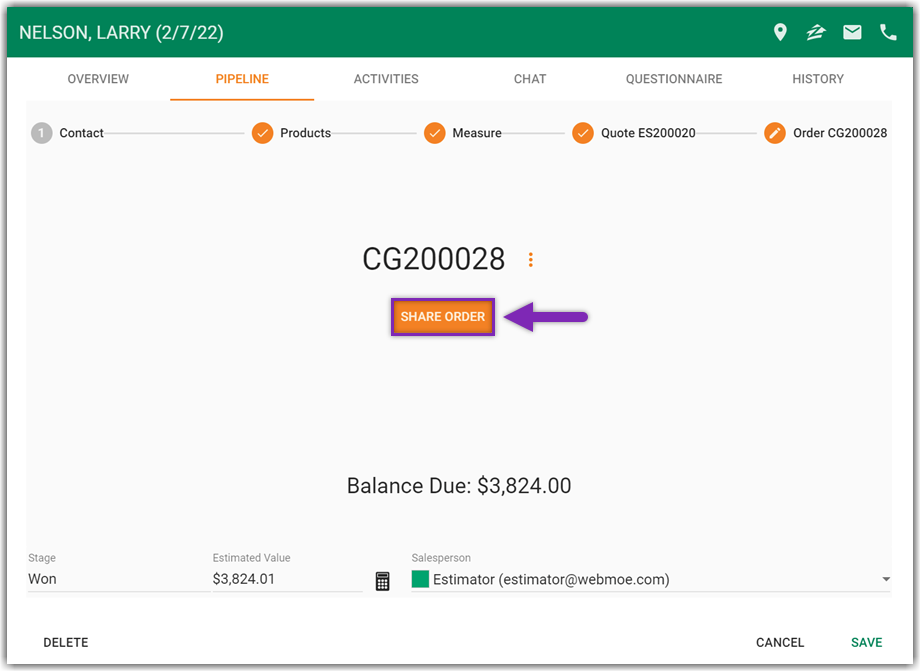
- Tap the Share Order button to open My Flooring Link
- (a.) Payment may be made directly from this screen using the Pay button, or (b.) You can customize the document and then (c.) tap the Share button.
To request payment when sharing the order document be sure to check the Request Payment box when customizing the document.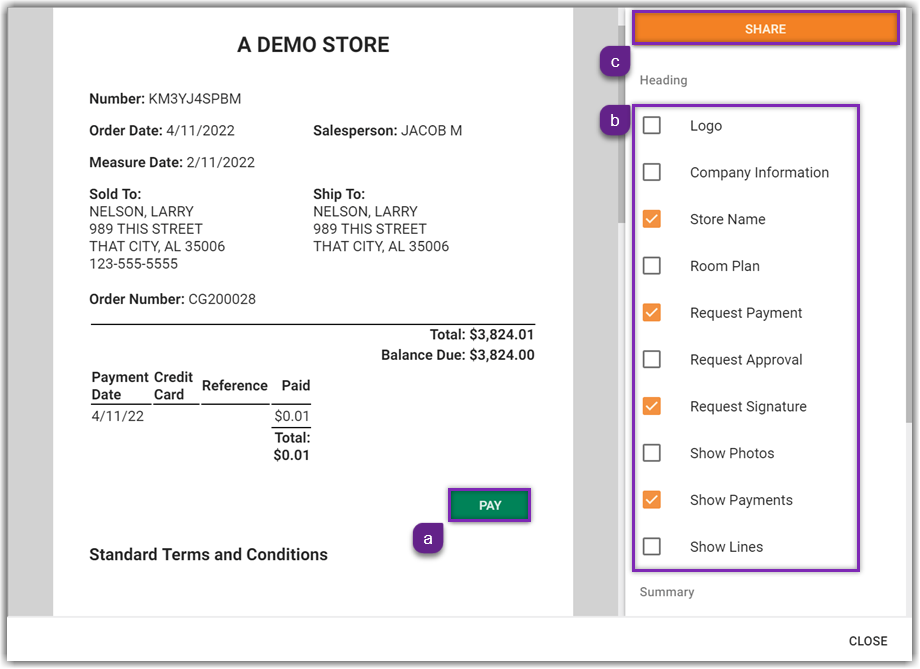
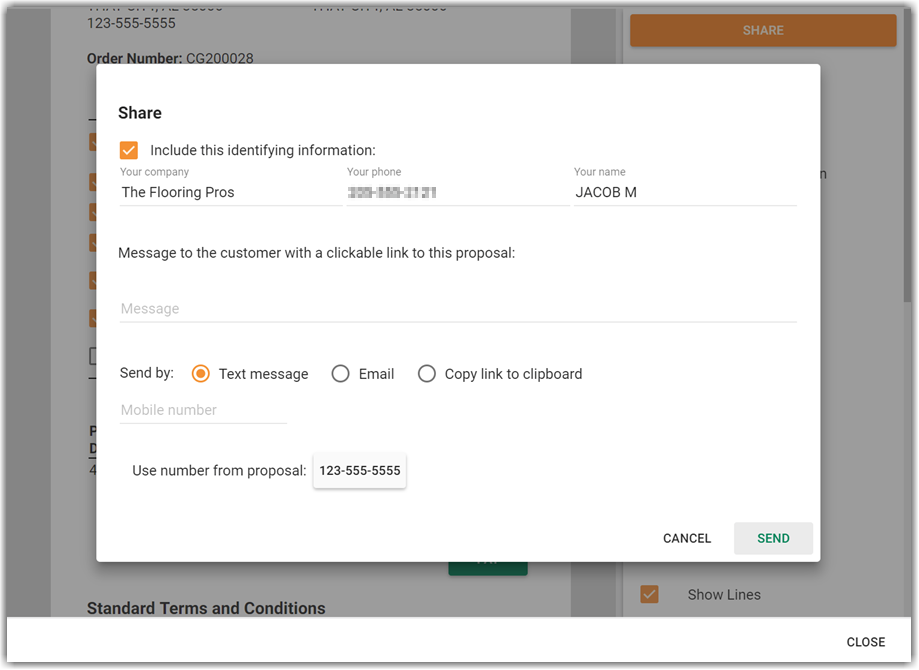
- You can share the document via text, email, or copy/paste the link.
Comments
Please sign in to leave a comment.